![Rekor-Logo-Horiz-RevWhite-Web-1.svg]](https://help.rekor.ai/hubfs/Rekor-Logo-Horiz-RevWhite-Web-1.svg)
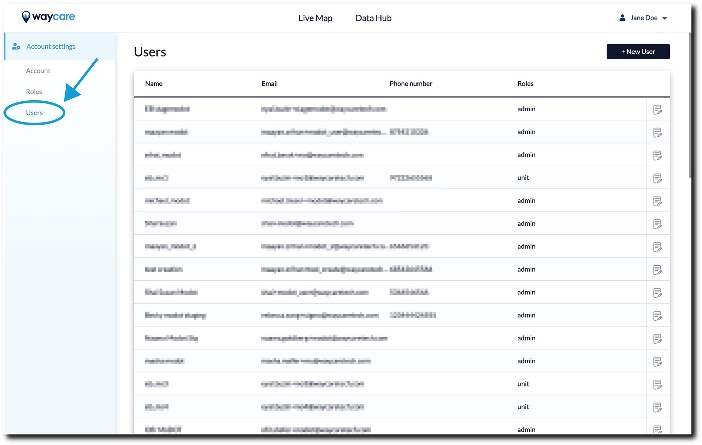
To create a new user:
- Navigate to the Users tab in Account Settings.
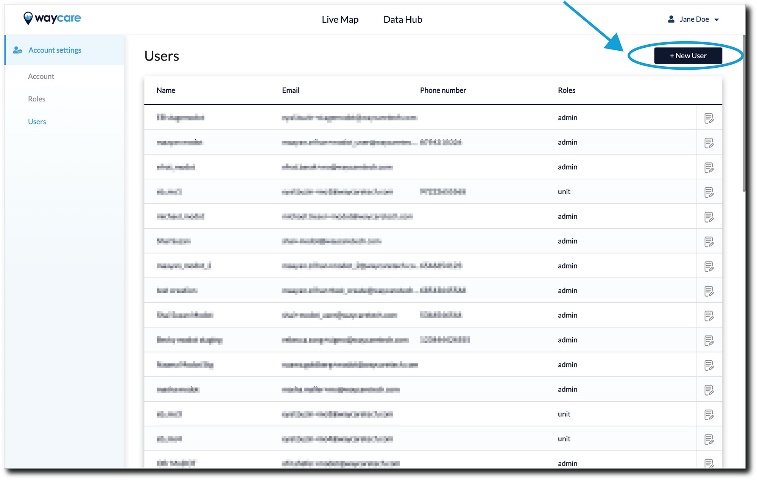
- Click the + New User button in the upper right-hand corner of the screen.
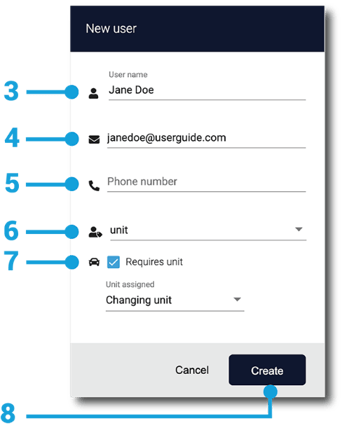
- In the pop-up that appears, enter the full name of the user (mandatory).
- Enter their email address for logging in (mandatory).
Note: Each user within the account should have a unique email address, which serves as the username for the log-in process. An error message appears in case the same email or phone number is used twice within the system. - Enter a phone number associated with that user (optional).
- Assign a role to the user (mandatory).
It is possible to assign multiple roles on the dropdown menu - select all that apply. - Unit Assignment: (optional)
- After assigning a user to a role, it is also possible to designate whether they require a unit - an assigned vehicle for their use on a shift.
- Some roles require a specific unit, while others might change during each shift.
- To assign a unit follow these steps:
- Click the requires unit checkbox
- In the dropdown menu that appears, select a specific unit, or select the label Changing Unit to allow that user to choose a different unit each time they log in.
- Select Create to complete the process.
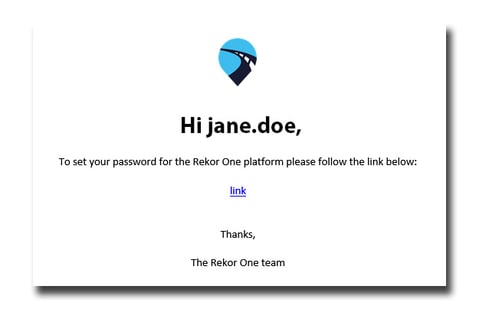
- An email is sent to this user with a link that enables them to set a password and start using the platform.
To edit an existing user:
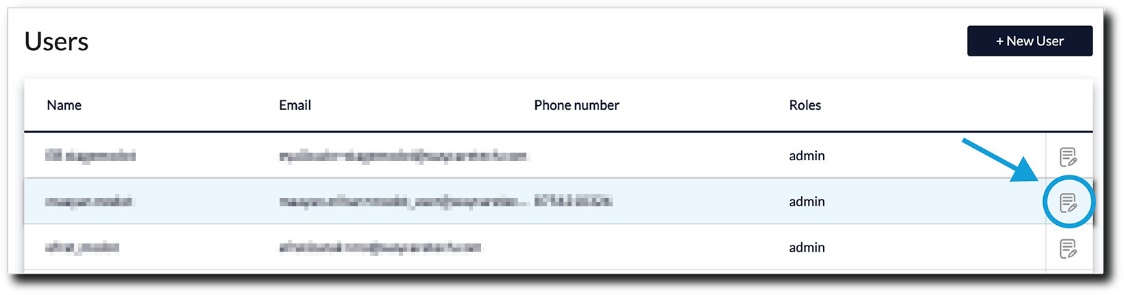
- Use your mouse or trackpad to select the user you would like to edit.
- Click the edit icon to view the details for that user.
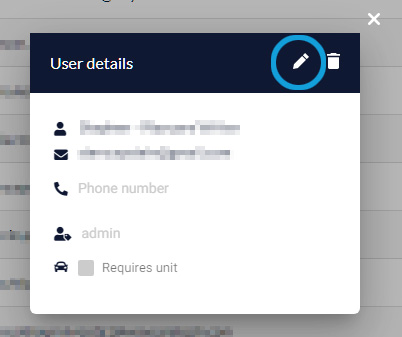
- The User details pop-up window appears.
- In the User details user pop-up window, click the edit icon.
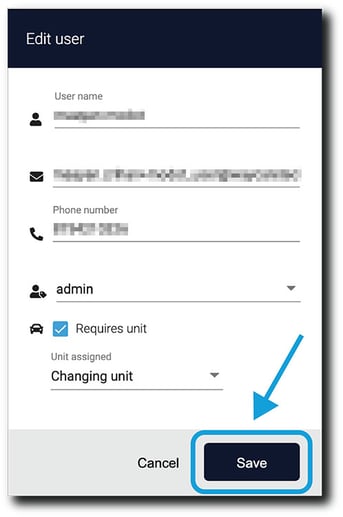
- The Edit user pop-up window appears.
- Make any necessary changes and then click Save.
To delete a user:
- Use your mouse or trackpad to select the user you would like to edit.
- Click the edit icon to view the details for that user.
- The pop-up window appears.
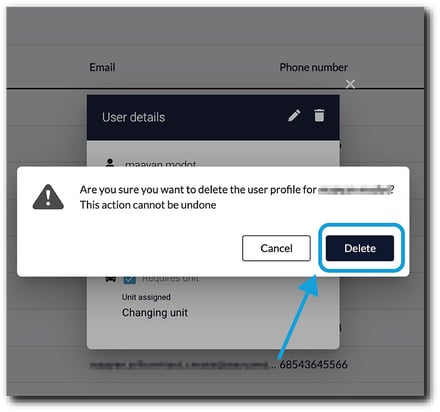
- In the User details pop-up, click the trash icon.
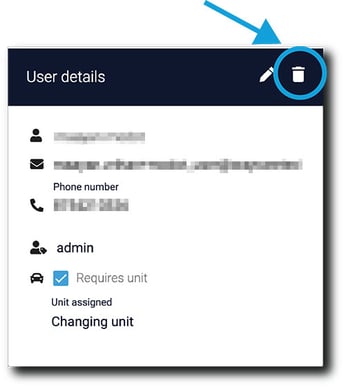
- A pop-up window appears asking you to confirm the deletion of the user. Confirm the deletion by clicking Delete.